
Best Spotify Canvas Loop Maker: 6 Tools That Export a Clean 3 to 8 Second Loop at 9:16


Your single is locked. The master sounds right, pre-saves are already rolling in. But Spotify for Artists still shows one glaring warning. No Spotify Canvas.
So you need a tool that can flip your album artwork or live footage into a silent, 3 to 8 second vertical loop. Fast. We compared the leading options on format fidelity, privacy, watermark policy and turnaround speed, and six made the cut.
Why bother? Canvas videos play right behind your track in the Spotify app, so they're the first thing new listeners see. Honestly, it's one of the cheapest bits of music promotion you can do. Good looping visuals help you promote a release without spending anything on ads.
How We Chose the Best Spotify Canvas Loop Makers
We scored every tool against a nine-point checklist. Not a gut feeling. First rule: the tool had to export a silent, three to eight second vertical MP4 that matches Spotify's published specs. No preset, no place on the list.
Then we looked at release-week stuff. Watermark-free downloads, frame-level trim or loop control, and an option to keep files local if privacy matters to you. Speed, mobile access across devices, and clear pricing rounded out the grid.
Weighting was simple:
Format accuracy: 25 percent
Watermark clarity: 15 percent
Creative controls: 15 percent
Privacy and source-media flexibility: 20 percent combined
Ease of use, speed, mobile, and pricing: the remaining 25 percent
Here's how the six tools that cleared every bar stack up:

That's the yardstick. Now let's see how each one does in real use.
1. Neural Frames: Best for Spec-Exact, Private Canvas Exports
The Neural Frames Spotify Canvas maker runs in your browser. It crops existing footage or turns static cover art into a gentle vertical loop.

[Image: Neural Frames Spotify Canvas maker interface screenshot]
Drop in MP4, MOV, or WebM video, or JPG, PNG, or WebP artwork, up to 50 MiB. Videos need a minimum duration of three seconds. On export you get a silent H.264 MP4 at 576 × 1024 (9:16), 30 fps, three to eight seconds long. That's the vertical format Spotify asks for, and your media never gets sent to a server.
Privacy is the big one here. Editing and export happen inside the browser tab, so unreleased clips stay on your machine. If you're sitting on an embargoed track, that's kind of important.
Want more than a crop? The same account links to a paid AI video tool, sort of a full Spotify canvas generator. It analyzes your song's stems, builds animated scenes up to 4K, and lets you send a vertical slice back to the Canvas maker for final trimming.
2. Tuneform: Best for Fast Cover-Art Templates
Already have approved artwork? Tuneform can turn it into a Spotify canvas video in minutes. Browse the vertical templates, select one, upload one to three images. Then adjust the crop or add a gentle zoom and click Render.
The animation lives inside the template. No keyframes, no frame-rate math. Your download comes back as a silent vertical MP4 at 30 fps, between three and eight seconds. Tuneform's FAQ notes five free Canvas exports with no watermark, and the visuals are image-led, not audio-reactive.
One thing to keep in mind. Lots of artists reuse the same looks, so customize it a bit. Swap in your own imagery, tweak colors or typography, whatever makes the Canvas still feel like you.
3. Rotor Videos: Best for Music-Led Stock-Footage Loops
Need a loop that actually moves with your track? Rotor lets the song steer. Upload the audio, pick a style, then explore its library of about nine million clips. The engine reads the energy peaks and hands you a vertical draft in minutes, so you don't wait around.

[Image: Rotor Videos music-led Spotify Canvas maker screenshot]
Every Canvas preset is 9:16, up to 1,920 pixels tall, three to eight seconds long, and exports as a silent MP4. Format checks are built in.
Previews are unlimited but watermarked. One paid credit removes the mark and unlocks an HD file you own.
The catch: Rotor automates the cut. You can swap clips and styles, sure, but true frame-by-frame tweaks still need a full editor.
4. Kapwing: Best for Precise Timeline Editing
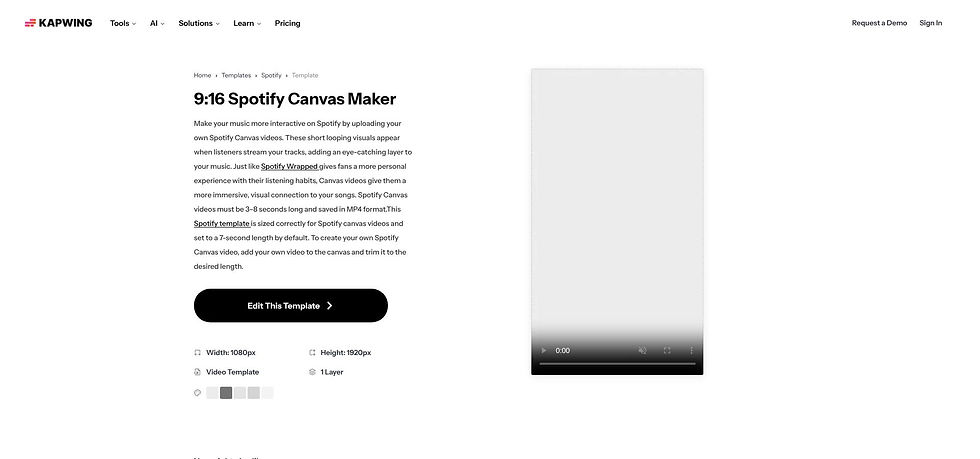
Kapwing treats a seven-second Canvas like any other project. You get a full timeline, multi-layer editing, and review links you can share. Not a locked-down wizard. If you like intuitive editing tools with real control, this is the one.
[Image: Kapwing Spotify Canvas template editor screenshot]
Open the Canvas template and you land in a 1,080 × 1,920 workspace already trimmed to seven seconds. Different length? Drag the clip edge or type exact in and out times. The export is a silent MP4 inside Spotify's three to eight second window, same 9:16 ratio.
Everything lives in the cloud, so collaborators can leave time-coded comments in real time. But your footage gets uploaded to Kapwing's servers first. That's the privacy trade-off.
Free-plan exports max out at 720p with a watermark bottom-right. Kapwing Pro unlocks HD or 4K and unlimited watermark-free downloads.
5. Canva: Best for Mobile Cover-Art Animation
Already building release graphics in Canva? Then you probably spend half your week in there anyway. Duplicate the design into a 9:16 page (1,080 × 1,920). Add effects like a slow pan, float, or a parallax layer on the background. Mute the soundtrack and trim the timeline to three to eight seconds.
Click Export and download a silent MP4. If you only used your own media or Canva's free elements, the file comes without a watermark. Add a Pro stock clip or font and a watermark shows up, unless you pay the one-off license fee or subscribe to Canva Pro.
Heads up though. Canva won't warn you if the loop drifts outside Spotify's length or ratio guidelines. Measure twice before you upload.
6. Adobe Express: Best for Quick Resize, Trim, and Mute
Got an eight-second clip sitting in your camera roll? Drop it into Adobe Express. You can resize, crop, mute, and export a Canvas-ready file before the coffee finishes brewing.
Tap Video, then select Resize and choose a vertical 9:16 canvas. Drag the frame until your subject sits dead center. Open Trim to set exact start and end points, then hit the speaker icon to kill the audio. That's it, one two three, and the biggest technical hurdles are done in under a minute.
Standard plans export a clean MP4 with no watermark. Want stickers, text, or stock footage? Jump into the full editor or upgrade to Premium. The bare-bones prep costs nothing extra though.
What you won't find is a Spotify preset or a loop helper. So give the file one last scrub to make sure the transition feels seamless. Express is basically the handyman who shows up with only the tools you need, and doesn't chat your ear off.
How to Turn Cover Art or Footage into a Seamless Canvas
From Cover Art
Subtle motion, not a full makeover. A slow zoom, a drift, a parallax layer. The image moves but doesn't distract. Keep titles, faces, and logos inside roughly the central 80 percent of the frame, because phone players can crop the outer edges on some devices. Trim to three to eight seconds and skip extra text. Spotify already shows the artist and song title.
From Live Footage or a Video Clip
Pick one repeatable action. A hair flip, a cymbal crash, a neon sign flicker, something that can loop without a visible jump. Crop tight so the focal point fills a 9:16 frame, mute the audio, trim to three to eight seconds. Talking-head shots rarely work, you know, because lip movement never syncs in a silent loop. Test the footage on repeat before you export.
Check the Loop Point
Play your draft on repeat at least five times. See a jump in motion or lighting? Switch to one of three common loop styles:
Continuous: first and last frames match, so the eye never sees a join
Hard cut: let the visible jump land on a beat or percussive hit
Rebound: play the clip forward, then in reverse, a built-in boomerang
Most editors handle a hard cut with a simple trim. Continuous and rebound usually need a duplicate-and-reverse or a cross-fade step. Keep testing until the seam disappears.
Keep It Brief and Safe
Before you upload, make sure you understand the specs. A silent MP4, 3 to 8 seconds, 9:16 vertical dimensions. And skip rapid flashes or strobe patterns, Spotify may reject those. Tight specs mean fewer upload errors and a smoother experience for listeners.
Frequently Asked Questions
What Is the Best Canvas Maker for Cover Art?
Want a fast, private crop? Neural Frames. Ready-made motion? Tuneform's templates win on speed. Rather tweak on your phone? Canva lets you animate layers in the same workspace you used for promo posts.
Can a Canvas Improve Playlist Chances?
Spotify ran its own controlled test in Q4 2020. Listeners who saw a Canvas were five percent more likely to keep streaming the track (s29.q4cdn.com). That's solid engagement. But Spotify has never said a Canvas directly boosts editorial or algorithmic ranking. So treat it as a way to enhance the fan experience and turn listeners into followers, not a silver bullet. If you want to reach real playlists, pair stunning visuals with actual pitching and promotion solutions.
Can I Upload a Canvas Before Release Day?
Yes. Spotify says any admin or editor on the main-artist team can attach a canvas to an upcoming track right inside Spotify for Artists, on web or mobile (support.spotify.com). Just visit your upcoming release there. Finish the visual while you're polishing the playlist pitch, then preview it on loop to make sure the transition feels seamless. Want to learn more? Read Spotify's Canvas guidelines before you create your first one, and elevate every release after that.

